
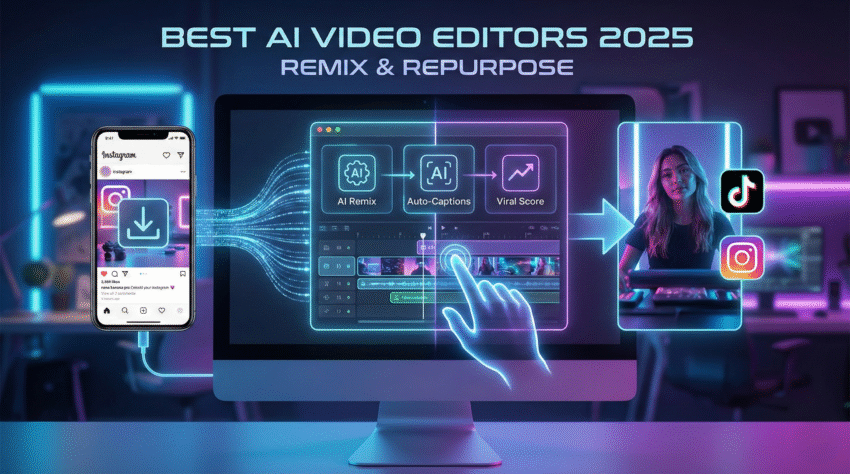
Downloading high-quality videos with FastVideoSave is just the first step. If you want to grow your Instagram or TikTok page in 2025, you cannot just repost raw content. You need to repurpose it.
But manual editing takes hours. Who has time to chop silence, add captions, and resize dimensions for every single post?
In 2025, AI video editors can do 90% of the work for you. But not all AI tools are created equal. Some destroy your video quality, while others leave ugly watermarks.
We tested 12 of the most popular AI video tools using 1080p files downloaded from our own tool. We looked for speed, ease of use, and retention quality.
Here is the ultimate guide to the 5 best AI video editors to remix your downloads today.
1. InVideo AI (Best for Text-to-Video)
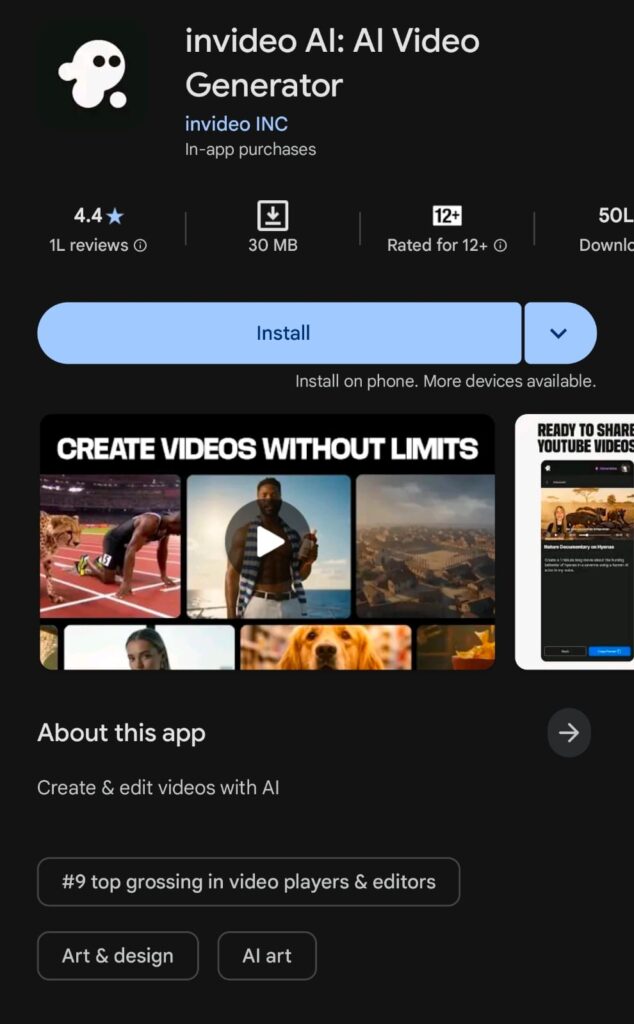
If you have a script or a blog post but no footage, InVideo is the industry leader. It uses generative AI to build entire videos from a simple text prompt. It’s perfect for creators who want to stay anonymous or don’t want to film themselves.
- Best Feature: “Magic Box” – Just type “Make a promotional video for my shoe brand” and it generates the script, voiceover, and stock footage instantly.
- 💰 Pricing: Free Plan (Watermarked) / Paid starts at $20/mo.
✅ Pros:
- Easiest tool for beginners (no timeline skills needed).
- Massive library of royalty-free stock footage.
- Web-based (works on any laptop).
❌ Cons:
- The free plan puts a large watermark on your video.
- AI voiceovers can sometimes sound slightly robotic.
⚠️ Who Should Avoid It? Professional video editors who need granular control over every frame. InVideo is for speed, not cinema.
Pro Tip: Use FastVideoSave to download a competitor’s trending video, upload it to InVideo, and ask the AI to “Create a similar video structure but for my niche.”
2. OpusClip (Best for Repurposing Long Videos)
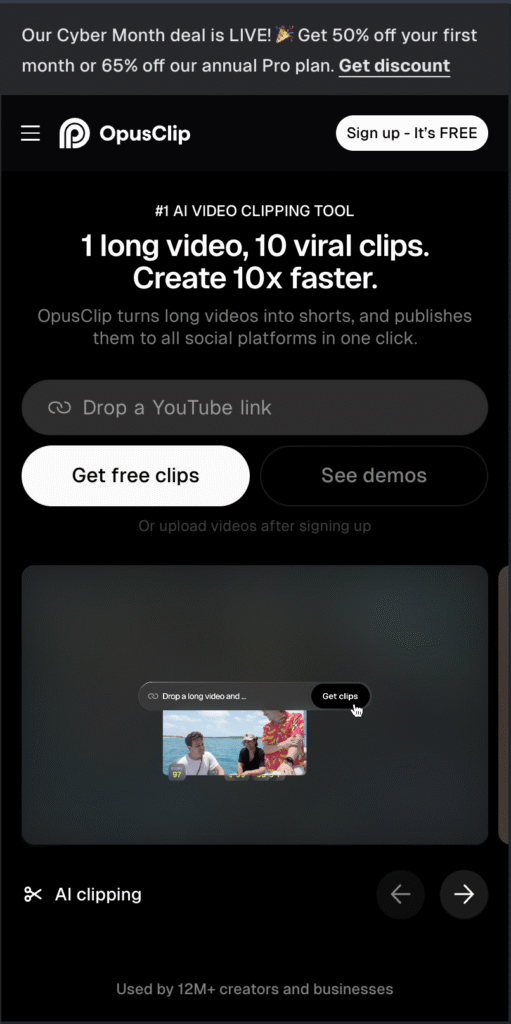
Do you download long Instagram Lives, YouTube podcasts, or Zoom interviews? OpusClip is a game-changer for content repurposing. It analyzes long videos and automatically cuts them into 10 viral-ready short clips.
- Best Feature: AI Virality Score – It scans your video and assigns a score (e.g., 99/100) to tell you which clip has the highest chance of going viral before you post it.
- 💰 Pricing: Free Trial (90 mins) / Pro starts at $19/mo.
✅ Pros:
- Saves 5+ hours of manual chopping per week.
- Auto-adds colorful, animated captions (Alex Hormozi style).
- Automatically reframes horizontal video to vertical (9:16).
❌ Cons:
- Only works well on videos with talking/dialogue. It struggles with music videos or visual montages.
⚠️ Who Should Avoid It? Creators who make silent “aesthetic” vlogs. OpusClip needs speech to work its magic.
3. Captions App (Best for Talking Head Videos)
You’ve seen those videos on Reels where the creator’s eyes are locked on the camera and the subtitles pop with every word? That is usually the Captions App. It is widely considered the secret weapon of top influencers.
- Key Feature: “AI Eye Contact” – It uses AI to fix your eyes so it looks like you are looking at the camera, even if you are reading a script on your desk.
- 💰 Pricing: $9.99/mo (Mobile App).
✅ Pros:
- Best automated subtitles in the game (very few typos).
- “AI Denoise” removes background wind/traffic noise instantly.
- Very affordable compared to desktop software.
❌ Cons:
- The desktop version is still in beta; it is primarily a mobile app.
⚠️ Who Should Avoid It? Desktop-first editors. If you prefer editing on a 27-inch monitor with a mouse, the mobile interface might frustrate you.
4. Descript (Best for Editing Like a Doc)
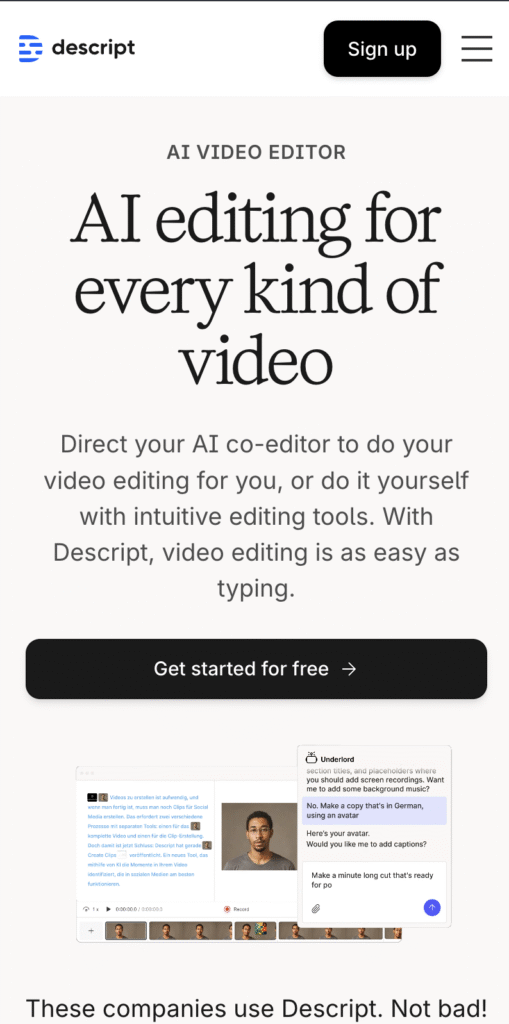
Descript allows you to edit video by editing text. When you upload a video, it generates a transcript. If you delete a sentence in the text, the AI automatically cuts that part of the video.
- Best Feature: Studio Sound – It uses AI to regenerate audio frequencies, making your iPhone recording sound like it was recorded in a professional studio.
- 💰 Pricing: Free Plan (1 hr/mo) / Creator starts at $12/mo.
✅ Pros:
- Incredible audio cleaning capabilities.
- Removes “umms,” “ahhs,” and filler words with one click.
- Great for screen recordings and tutorials.
❌ Cons:
- Can be buggy/slow when exporting large 4K video files.
⚠️ Who Should Avoid It? Visual FX artists. Descript is amazing for dialogue, but terrible for complex visual effects or color grading.
5. Adobe Premiere Pro (Best for Professionals)
Adobe has finally integrated massive AI features in 2025, including “Text-Based Editing” and “Generative Fill” for video. If you are running a marketing agency (like Ecom Lifters), this is the standard.
- Why use it: It offers the “Generative Fill” feature, allowing you to expand the borders of a video (e.g., turning a square video into a wide video) without stretching it.
- 💰 Pricing: $22.99/mo.
✅ Pros:
- Industry-standard quality.
- Unlimited creative control over color, audio, and effects.
- Seamless integration with Photoshop and After Effects.
❌ Cons:
- Steep learning curve (takes weeks to master).
- Expensive monthly subscription.
⚠️ Who Should Avoid It? Beginners. If you just want to post a Reel quickly, Adobe is overkill and will slow you down.
Buyer’s Guide: Choosing the Best Ai Video Editors
Still not sure which one to pick? Use this checklist to decide based on your specific needs.
1. Identify Your Source Content
- Did you download a Podcast/Interview? Use OpusClip. It finds the best hooks for you.
- Did you download a Tutorial/Review? Use Descript to clean up the audio and remove filler words.
- Did you download visual inspiration? Use InVideo to remix the concept.
2. Check the Export Resolution
Never ruin a high-quality download with a low-quality editor.
- Always ensure the tool supports 1080p at 60fps exports.
- Warning: Many “Free AI Editors” compress your video to 720p. Always check the export settings before you start editing.
3. The “Watermark” Trap
If you are using these tools for business, never post a video with a software watermark (e.g., “Made with InVideo”).
- Instagram’s algorithm detects watermarks and downranks the video (shows it to fewer people).
- It looks unprofessional to clients.
- Verdict: It is always worth paying the $10-$20/mo to remove the branding.
Quick Tutorial: How to Remix a Reel in 3 Minutes
Here is the fastest workflow to take a downloaded video and make it unique:
- Download: Use FastVideoSave to get the MP4 file of a trending Reel in your niche.
- Upload: Import the file into Captions App or OpusClip.
- Hook: Use the AI to identify the most engaging 5 seconds. Move this to the start of the video.
- Caption: Apply a “Karaoke Style” caption template (highlighting the current word).
- Export: Save in 1080p and upload to your account with your own unique twist in the description.
Conclusion
The quality of your final video depends entirely on the quality of your input.
Don’t settle for blurry screen recordings that look amateur. Use FastVideoSave to grab the highest resolution source files, then use InVideo (for speed) or Adobe (for quality) to turn them into viral gold.
Ready to start? Download your first video now and test these tools yourself.
Frequently Asked Questions (FAQ)
Can I edit downloaded Instagram videos for commercial use?
Yes, but only if you own the copyright or have permission from the creator. AI tools can help you remix content, but they do not grant legal rights to use someone else’s work.
Which AI video editor is best for beginners?
InVideo is the best choice for beginners because it uses text prompts to generate video edits, requiring no timeline experience.
Does re-uploading Instagram Reels reduce quality?
Usually, yes. Instagram compresses video uploads. To prevent this, always use a high-quality downloader like FastVideoSave to get the original 1080p source file before editing.