
Introduction
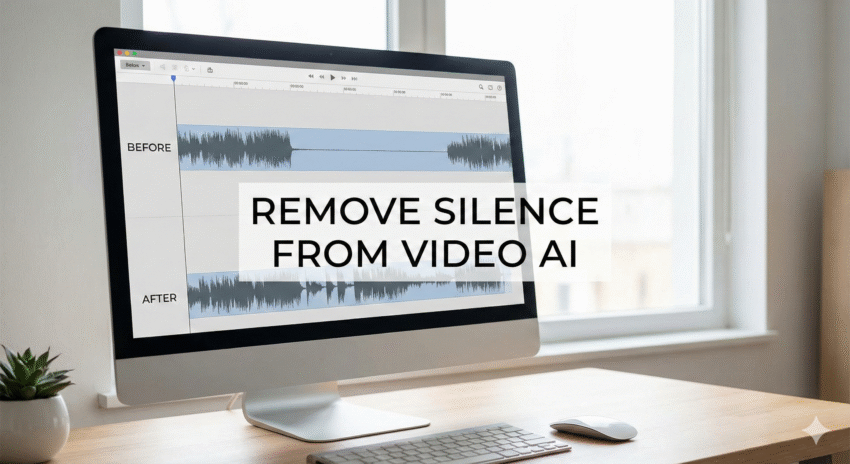
If you’re editing podcasts, YouTube videos, or tutorials — especially clips you downloaded using FastVideoSave — the fastest way to improve pacing is by removing silences automatically. Modern AI tools can detect pauses, cut dead air, apply jump cuts, and smooth transitions without manual timeline editing.
This guide explains how to remove silence from video AI, how jump-cut automation works, and gives you a practical 3-click workflow to clean your footage instantly.
What Is AI Silence Removal? (Simple Explanation)
AI silence trimming tools analyze:
- Waveforms
- Speech detection
- Background noise patterns
- Pauses between sentences
…and automatically remove:
- Long gaps
- Filler pauses
- “Umm” / “ahh” moments (in some tools)
- Dead air
Essential for:
- Podcasters
- YouTube educators
- Course creators
- Video agencies
- Editors who want to save hours
This is the foundation of jump cut automation — a modern editing style used by fast-paced creators.
Best AI Tools to Remove Silence From Video (2025)
1. Timebolt — Fastest Automatic Video Trimmer


Why editors use Timebolt:
- Cuts silence instantly
- Detects low-volume regions
- Lets you preview & delete segments
- Exports directly to Premiere, DaVinci, Final Cut, CapCut
- Perfect for talking-head videos & podcasts
Strengths:
✔ Lightning fast
✔ Local processing (no cloud upload)
✔ Very accurate at finding pauses
2. Wisecut — AI Jump-Cut + Auto-Reframe + Music


Why creators like Wisecut:
- Removes silence
- Adds automatic jump cuts
- Smart background music ducking
- AI pacing improvement
- Auto captions included
Strengths:
✔ Great for long podcast episodes
✔ Cloud-based convenience
✔ Ideal for beginners
Timebolt vs Wisecut — Which Should You Use?
| Feature | Timebolt | Wisecut |
|---|---|---|
| Silence Removal | ✔ Local AI | ✔ Cloud AI |
| Jump Cut Automation | ✔ | ✔ |
| Auto Music Ducking | ✘ | ✔ |
| Auto Captions | ✘ | ✔ |
| Export to Editors | ✔ (Premiere, FCP, Resolve) | ✔ (MP4 + AI improvements) |
| Speed | Fastest | Medium |
| Best For | Editors & pros | Beginners & podcasters |
How to Remove Silence in 3 Clicks (Step-By-Step Workflow)
This is your mandatory step-by-step section.
Step 1 — Upload Your File
- Open Timebolt or Wisecut
- Drag & drop your video
- AI scans waveforms instantly
Step 2 — Auto Silence Detection
- Click “Detect Silence” (Timebolt)
or - Click “Auto Edit” (Wisecut)
The AI trims dead air and highlights speaking sections.
Step 3 — Export Jump-Cut Video
- Choose your export preset
- One click to render
- Upload directly to your editing software or YouTube
That’s it — 3 clicks from raw recording to jump-cut-ready video.
Why Silence Removal Is Essential for Podcasts
Podcast viewers expect pacing.
AI-based silence removal helps by:
- Cutting awkward pauses
- Tightening conversation flow
- Making speakers sound more confident
- Improving average watch time
- Reducing editing hours by 70%+
If you’re editing someone else’s podcast, this is the fastest way to deliver polished episodes.
Jump Cut Automation: Why It Works
Jump cuts became a YouTube standard because they:
- Remove friction in speech
- Maintain energy
- Improve retention
- Make tutorials easier to follow
- Keep pacing modern and punchy
AI tools now generate these cuts automatically — no timeline slicing required.
Use Cases Beyond Podcast Editing
1. YouTube Tutorials
Instantly remove slow explanations or reflective pauses.
2. Online Courses
Keeps modules efficient and student-friendly.
3. Interviews & Livestreams
Automatically remove dead air in pre-recorded sessions.
4. Client Social Media Content
Deliver clean clips fast, especially when paired with FastVideoSave downloads.
Offline vs Cloud Silence Removal (Which Is Better?)
Offline (Timebolt)
- Faster
- More private
- Works on large files
- No upload time
Cloud (Wisecut)
- AI music & captions
- Good for beginners
- Great for team workflows
Choose based on your workflow style.
FAQ
Does AI remove too much silence sometimes?
Tools allow threshold adjustments so you control sensitivity.
Can this replace manual editing?
For 70% of pacing work — yes. Fine tuning still helps.
Is this good for long podcasts?
Yes, especially Wisecut which optimizes pacing.
Does this work offline?
Timebolt: Yes
Wisecut: No (cloud-based)
Conclusion
If you’re editing podcasts, tutorials, interviews, or long talking-head content — removing silence with AI is the fastest upgrade you can make to your workflow. Tools like Timebolt and Wisecut turn messy recordings into clean, punchy edits within minutes.
Pair this with FastVideoSave to pull podcast clips or reference videos, and you’ll have a complete modern editing stack ready for any format.