
Introduction
If you’re editing videos on your computer and pulling raw clips with FastVideoSave, adding clean captions is one of the fastest ways to boost retention and viewer engagement. Whether you want auto subtitles desktop free, CapCut PC auto captions, or offline captioning, this guide breaks down the best tools for Windows, macOS, and professional workflows.
We’ll also link to our AI Video Upscaler guide, so you can build a full editing tool stack that pairs upscaling + captions for maximum clarity.
Why Auto Captions Matter (Beyond Accessibility)
Auto captions help creators:
- Increase watch time
- Improve comprehension for viewers
- Optimize content for silent autoplay
- Support multilingual audiences
- Improve SEO + keyword recognition
And with 2025 speech models, accuracy is now 90–95% out of the box.
Best Auto Caption Generators for PC (Ranked 2025)
Below are the strongest tools based on accuracy, cost, offline support, and export flexibility.
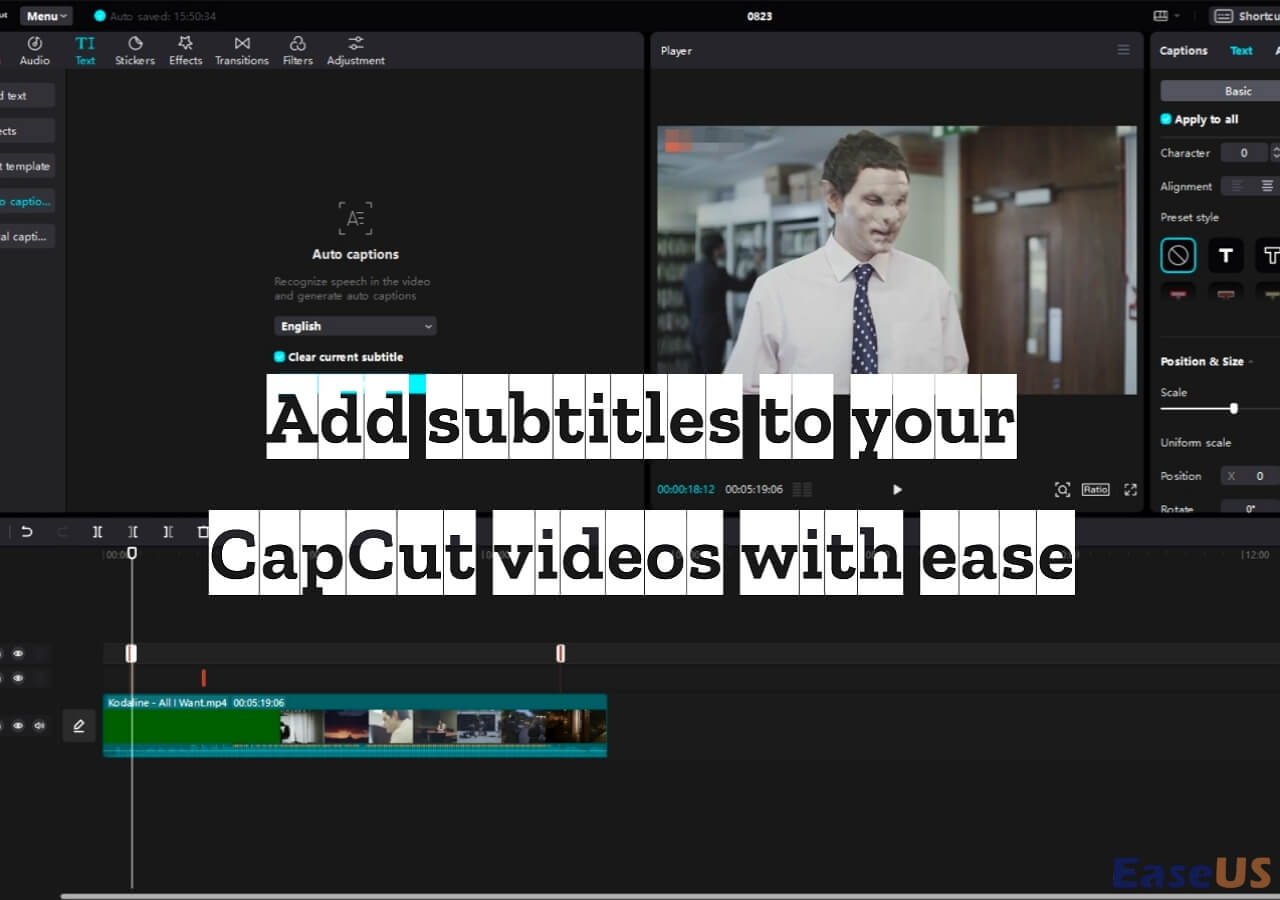
1. CapCut PC — Best Free Auto Captions

Why it’s great:
- Completely free
- Fast speech detection
- Editable word-by-word
- Works offline after model download
- Perfect for TikTok, Reels, Shorts editing
Best for: creators, short-form editors, beginners.
2. Descript — Best for Long-Form Content
Highlights:
- Studio-grade transcription
- Auto captions with speaker detection
- Edit your video by editing the text
- Excellent for podcasts + YouTube videos
- Multi-track accuracy is outstanding
Best for: YouTubers, educators, long-form editors.
3. Adobe Premiere Pro — Speech-to-Text
Why professionals use it:
- Seamless integration
- Generates captions inside the timeline
- Multiple caption styles + broadcast compliance
- Reliable accuracy for fast speakers
- Supports subtitles for multilingual workflows
Best for: editors, filmmakers, agency teams.
4. Subtitle Edit — Best Free Offline Tool
Why it’s unique:
- Fully offline
- Open-source
- Supports Whisper AI (local model)
- Export SRT, VTT, TXT
Best for: privacy-conscious editors, enterprise setups.
5. Whisper.cpp (Local AI Speech Recognition)
A bare-metal, open-source solution running locally.
Why it’s powerful:
- 100% offline
- High accuracy
- No data leaves your machine
- Perfect for sensitive client content
Best for: advanced tinkerers & developers.
Screenshot Example: Raw Video vs. Auto Captioned Video
Below is a visual to help readers understand how PC auto captions look before and after processing.


Comparison Table: Accuracy vs. Price vs. Offline Support
| Tool | Price | Accuracy | Offline Support | Best For |
|---|---|---|---|---|
| CapCut PC | Free | High | Partial | Short-form content |
| Descript | $$ | Very High | No | Podcasts, YouTube |
| Premiere Pro | $$$ | High | Yes | Filmmakers, editors |
| Subtitle Edit | Free | High | Yes | Offline workflows |
| Whisper.cpp | Free | Very High | Yes | Local AI users |
How to Add Auto Captions to Video Offline (Step-by-Step)
Method 1 — CapCut PC (Fastest for Free Users)
- Import your video
- Go to Text → Auto Captions
- Choose language
- CapCut generates captions automatically
- Edit lines, timing, and animations
- Export final video
Method 2 — Premiere Pro Speech-to-Text (Pro Workflow)
- Import your footage
- Open the Text panel
- Click Transcribe Sequence
- Edit misheard words
- Create captions directly from transcript
- Style them with Essential Graphics
- Export with burn-in or sidecar captions
Method 3 — Fully Offline Using Whisper + Subtitle Edit
- Install Subtitle Edit
- Enable Whisper model (tiny → large)
- Load your video
- Generate transcription locally
- Adjust timestamps
- Export SRT/VTT
- Burn subtitles using any editor
Best Practices for Clean, High-Retention Captions
- Keep lines short (6–10 words max)
- Use high-contrast fonts
- Don’t overuse animations
- Highlight key words in bold or color
- Avoid placing captions too high
- Use 2-line subtitles for spoken dialogue
- Maintain consistent timing with speech rhythm
Professional Caption Styles You Can Use
1. YouTube Documentary Style
- White text
- Black drop shadow
- Bottom center
2. Social Media “Creator Style”
- Bold font
- Colored keywords
- Occasional emojis (optional)
3. Lower Third Professional Style
- Minimal styling
- Corporate clean
- Perfect for courses, training videos
When Offline Captioning Is Better
Offline captioning gives advantages:
- No data uploaded
- Works without internet
- Faster processing for long videos
- Higher accuracy with local AI models
- Safe for confidential or client projects
Many editors pair offline captions with tools in our AI Video Upscaler article for a full-quality workflow.
Use Cases for Auto Caption Generators
- Educational YouTube channels
- Short-form content (Reels/TikTok)
- Online courses
- Travel vlogs
- Corporate training
- Multilingual content
- Accessibility compliance
FAQ
Is there a completely free auto caption tool for PC?
Yes — CapCut PC and Subtitle Edit are both free.
Can I add captions offline?
Yes, using CapCut (after model download), Premiere Pro, or Subtitle Edit.
Which tool is best for YouTube creators?
Descript or Premiere Pro offer the best long-form accuracy.
Which is the easiest for beginners?
CapCut PC — simple interface, fast results.
Conclusion
Whether you’re captioning a short TikTok or a long-form YouTube tutorial, using the right auto caption generator for PC can massively improve clarity, engagement, and accessibility. With free options like CapCut PC and powerful options like Descript and Premiere Pro, any creator can instantly add clean, accurate subtitles.
Pair captioning with quality tools from our AI Video Upscaler post to build a full professional editing stack.